
10 Gmail Tricks That Save Hours Every Week (Most People Don’t Know About)
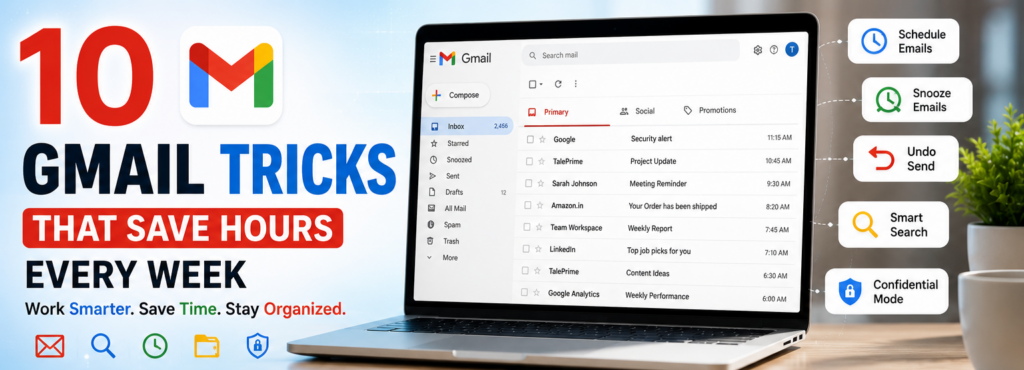
If you use Gmail every day, you’re probably only using a small part of what it can do.
Gmail isn’t just an email service. It includes powerful features that help you organize your inbox, find emails instantly, automate repetitive tasks, and save valuable time.
Whether you’re a student, office worker, freelancer, or business owner, these Gmail tricks can make email management much easier.
Let’s get started.
1. Schedule Emails
Don’t want to send an email immediately?
Use Schedule Send.
You can write an email today and automatically send it tomorrow morning or next week.
Perfect for:
- Office work
- Birthday wishes
- Client follow-ups
2. Snooze Emails
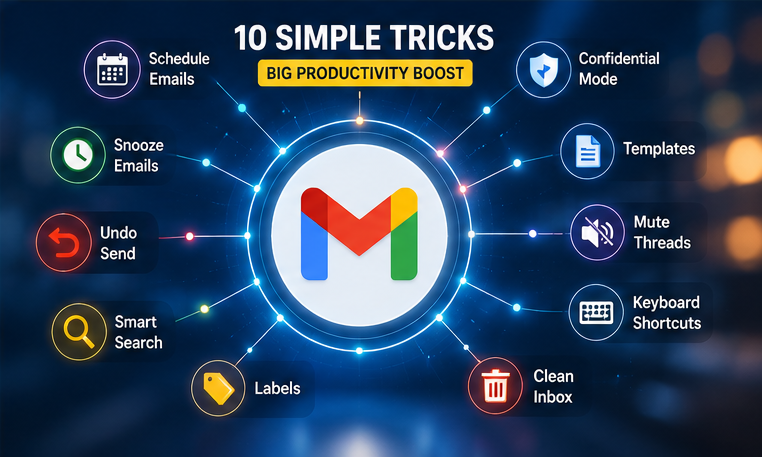
Busy right now?
Instead of keeping an email in your inbox, snooze it.
It disappears and returns exactly when you choose.
You’ll never forget important emails again.
3. Undo Send
Sent an email with a mistake?
Gmail lets you cancel sending within a few seconds.
Enable a longer cancellation period in Settings for extra peace of mind.
4. Search Like a Pro
Instead of scrolling through thousands of emails, use search operators.
Examples:
from:amazonhas:attachmentolder_than:1ylabel:workFinding old emails becomes much faster.
5. Use Labels Instead of Folders
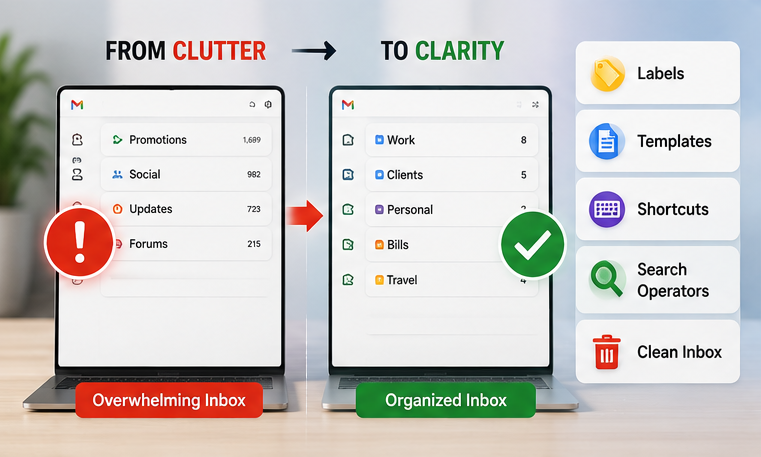
Unlike traditional folders, Gmail labels let one email belong to multiple categories.
Examples:
- Office
- Family
- Bills
- Travel
This keeps your inbox organized without moving messages around.
6. Enable Confidential Mode
Need extra privacy?
Confidential Mode lets you:
- Set expiration dates
- Require a passcode
- Prevent easy forwarding or downloading (subject to recipient limitations)
Great for sharing sensitive information.
7. Create Email Templates
If you send similar emails often, save them as templates.
Examples:
- Leave requests
- Customer replies
- Business quotations
One click can save several minutes.
8. Mute Noisy Conversations
Receiving too many replies in a group email?
Mute the conversation.
Future replies skip your inbox but remain searchable.
9. Use Keyboard Shortcuts
Power users can navigate Gmail much faster using keyboard shortcuts.
Examples:
- C = Compose
- R = Reply
- E = Archive
Enable shortcuts in Gmail Settings first.
10. Clean Your Inbox Quickly
Search:
larger:10Mto find large emails.
Search:
older_than:2yto find old messages.
Delete unnecessary emails and free up storage space.
Final Thoughts
Small Gmail features can make a big difference.
Using even a few of these tricks can save time, reduce inbox clutter, and help you stay organized every day.
Try them one by one and discover which works best for you.
Frequently Asked Questions (FAQs)
1. Are Gmail tricks free?
Answer: Yes. Most Gmail productivity features are available for free.
2. Can I recover a deleted email?
Answer: Yes. Deleted emails stay in the Trash for 30 days before permanent removal.
3. Does Gmail have keyboard shortcuts?
Answer: Yes. Enable them in Settings for faster navigation.
4. Can I schedule emails on my phone?
Answer: Yes. Gmail supports email scheduling on Android, iPhone, and desktop.
5. Is Confidential Mode completely secure?
Answer: It adds useful protections like expiration dates and passcodes, but recipients can still capture information in other ways (such as screenshots or photos). Avoid sending highly sensitive information by email unless appropriate safeguards are in place.
6. How do I reduce spam emails?
Answer: Mark unwanted emails as spam, unsubscribe from legitimate mailing lists you no longer want, and avoid sharing your email address publicly whenever possible.
Suggested Internal Links
- 10 Everyday Things You Didn’t Know Google Could Do
- 10 Hidden Android Features You Should Start Using Today
- 10 Hidden WhatsApp Features You Should Start Using Today
- 10 Websites That Feel Like Magic (And They’re Free)
- Best AI Tools That Save Hours Every Week
- 10 Free AI Features Already Built Into Your Phone
- 10 Online Scams Everyone Should Know in 2026




Pingback: The Internet in 2035: 10 Technologies That Will Change Everything